Using ArtesAI on the HPC
ArtesAI is FSU's institutional gateway to commercial generative AI models. It brokers access to hosted models from Anthropic (Claude) and OpenAI (GPT) through Microsoft Foundry under university agreements, so you can use them with your FSU credentials rather than a personal subscription or a departmental credit card.
Beyond the web interface, ArtesAI exposes Anthropic- and OpenAI-compatible API endpoints. This means you can point command-line coding agents such as Claude Code and OpenAI Codex at ArtesAI and use them directly on the HPC for tasks such as editing job scripts, debugging analysis code, and navigating your project files on the cluster, without the data leaving the FSU-contracted service for a personal AI account. This page walks through creating an ArtesAI API project and configuring each client.
ArtesAI is not a local model
Unlike the local models we host on the HPC, ArtesAI forwards your prompts to a cloud-hosted service. Do not send restricted or regulated data (PHI, PII, export-controlled, or otherwise sensitive research data) to ArtesAI unless you have confirmed it is approved for that data classification. Refer to the FSU AI guidance for faculty, or contact us with questions.
Note
Each API project is governed by an access profile, which determines the models and APIs available to it, and usage counts against your monthly budget. More information is at the ArtesAI service page.
Setting up an API key in ArtesAI#
To use ArtesAI on the HPC, you will need to first configure an API Project in the web interface.
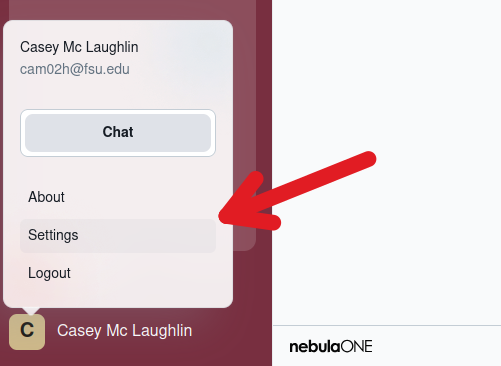
First, login to https://artesai.fsu.edu. In the lower left corner, click on your name to invoke a context menu. In the context menu, select "Settings"
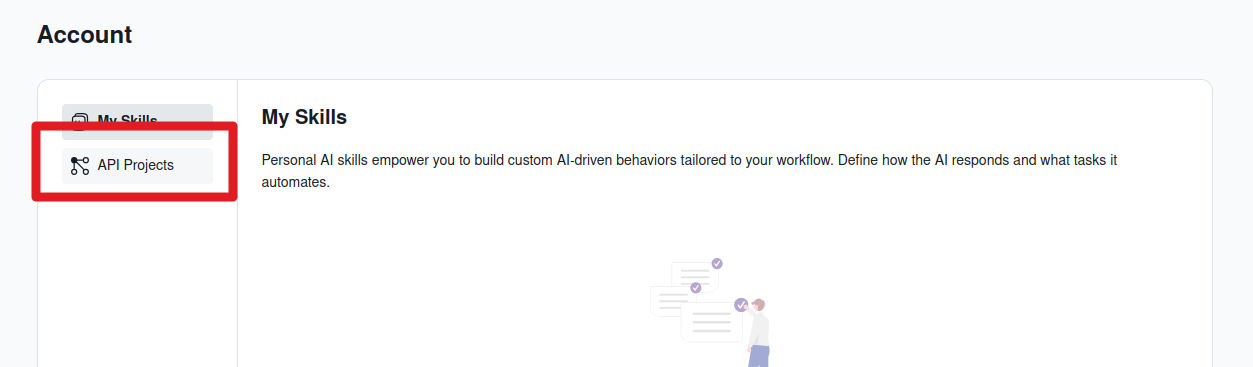
Next, click on "API Projects".
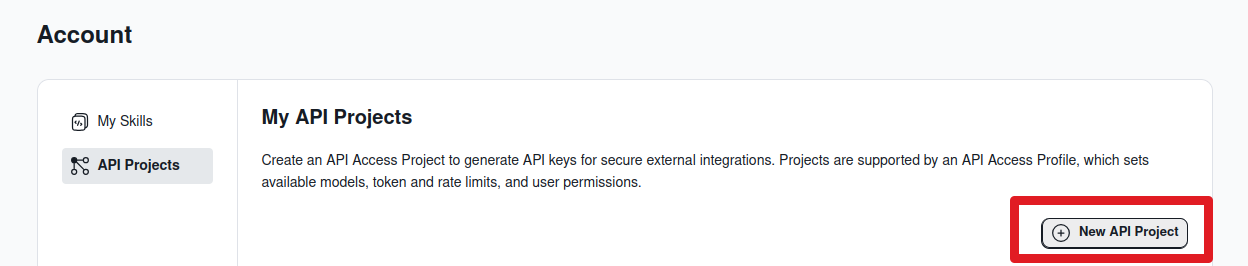
In the "My API Projects" interface, click the "New API Project" button.
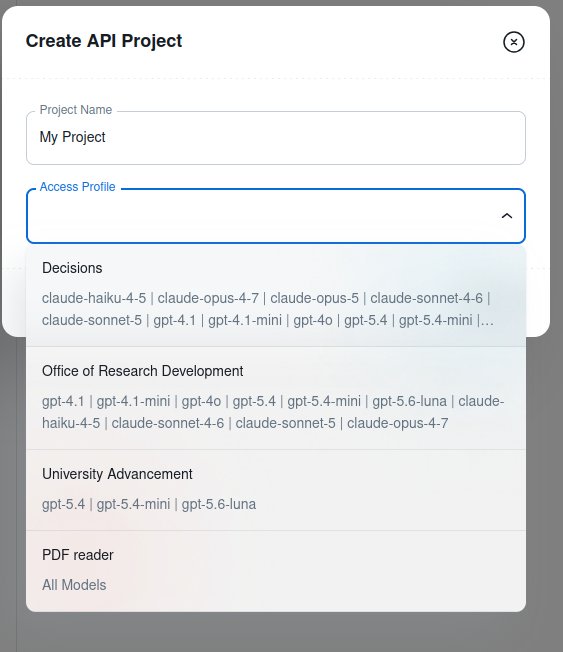
In "Create API Project" dialog, enter any name that you would like for your project, then select an Access Profile.
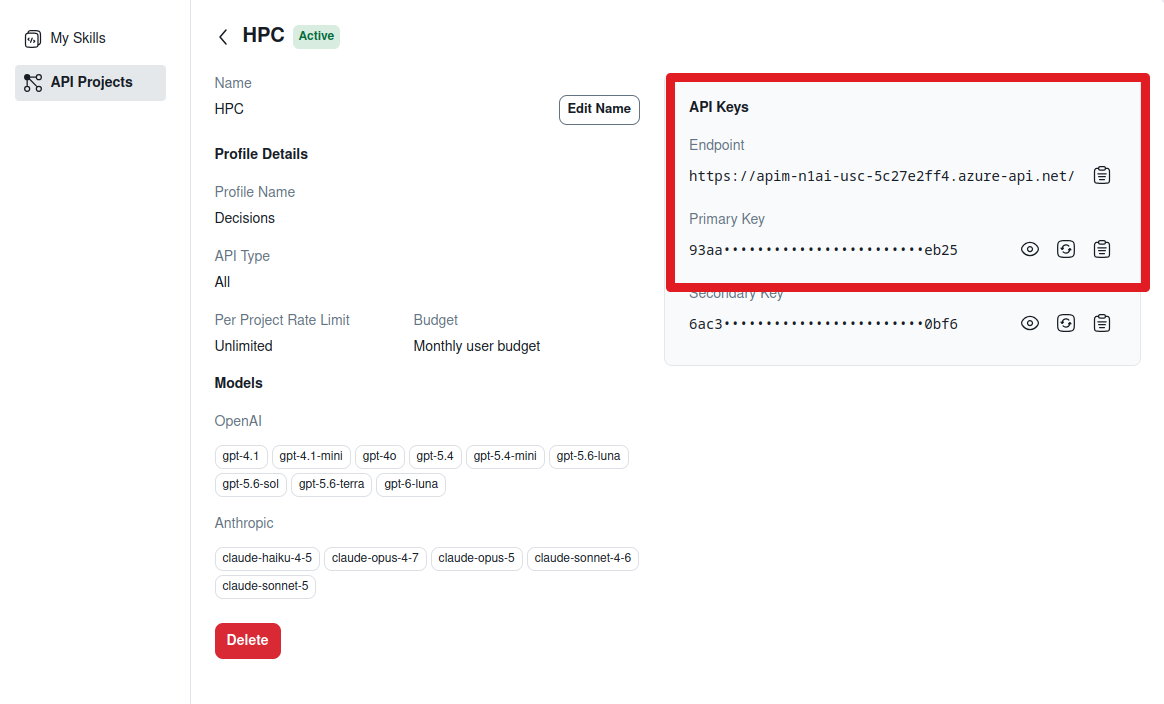
Once your project is created, you will see the Project Overview screen. Take note of the "API Keys" on the right side of the screen; you will use these to configure your clients below.
Using Anthropic Claude with ArtesAI#
To use Claude with ArtesAI, ensure you have the Claude Code CLI client installed in your home directory. Instructions are on the Claude website.
ArtesAI requires specific settings in the Claude settings.json file. If you haven't run the Claude CLI
client before, you will need to create this file at the appropriate path:
Note
On Linux and MacOS, ensure owner-only permissions:
In the settings.json file, ensure the following values are set:
Substitute the endpoint URL and API key from the project overview where noted in the above code.
Warning
ArtesAI may offer newer models than at the time of writing. Refer to the Project Overview in ArteAI for available models.
Invoke Claude on the command line by running the claude command.
Look for the Microsft Foundry string next to the model name. That indicates that you are using Claude
through ArtesAI.
Tip
If you only want to use ArtesAI for specific projects, you can override the global Claude config by placing a .claude/settings.json file in your project folder.
For more information, refer to the Claude Code on Microsoft Foundry web page.
Using OpenAI Codex with ArtesAI#
To use OpenAI Codex with ArtesAI, ensure you have the Codex client installed in your home directory. Instructions are on the OpenAI website.
ArtesAI requires specific settings in the .codex/config.toml file and an environment variable set in your shell. If you haven't run the Codex CLI client before, you will need to create this file at the appropriate path:
In the config.toml file, ensure the following settings are present:
```toml hl_lines=8 model = "gpt-6-luna" # Select one of the models listed in the ArtesAI Models -> OpenAI section of the Project Overview screen model_provider = "artesai" model_reasoning_effort = "medium"
[model_providers.artesai]
name = "ArtesAI"
base_url = "
[model_providers.artesai.env_http_headers] api-key = "NEBULAONE_API_KEY"
[tui] screen_reader_detection_done = true
Substitute the API key from the project overview where noted in the above code.
Then logout and log back in again to read the environment variable (or run source ~/.bashrc). When you run codex, it will be using ArtesAI for the connection. Confirm this by typing /status at the Codex prompt. You should see something similar to the following:
Note the Model provider: artesai in the output.
For more information, refer to the Codex with Azure OpenAI in Microsoft Foundry Models documentation page.
VS Code with Claude or Codex#
VS Code Claude and Codex extensions use their respective command line utilities' configuration files.
If you successfully used these instructions to configure one or both, you can download the VS Code extension and be using ArtesAI by default.