LLM inference in R
R can connect to Ollama through the rollama package.
Example: RStudio and Ollama#
This guide provides a concrete example of an R inference workflow using the RStudio IDE with an Ollama/Apptainer container.
Note
This example assumes that the llama3.2 model is available in your Ollama environment. If you use a different model, replace llama3.2 with your model name.
Submit your interactive job#
- Log in to Open OnDemand
- From the top navigation menu, select Interactive Apps → RStudio:
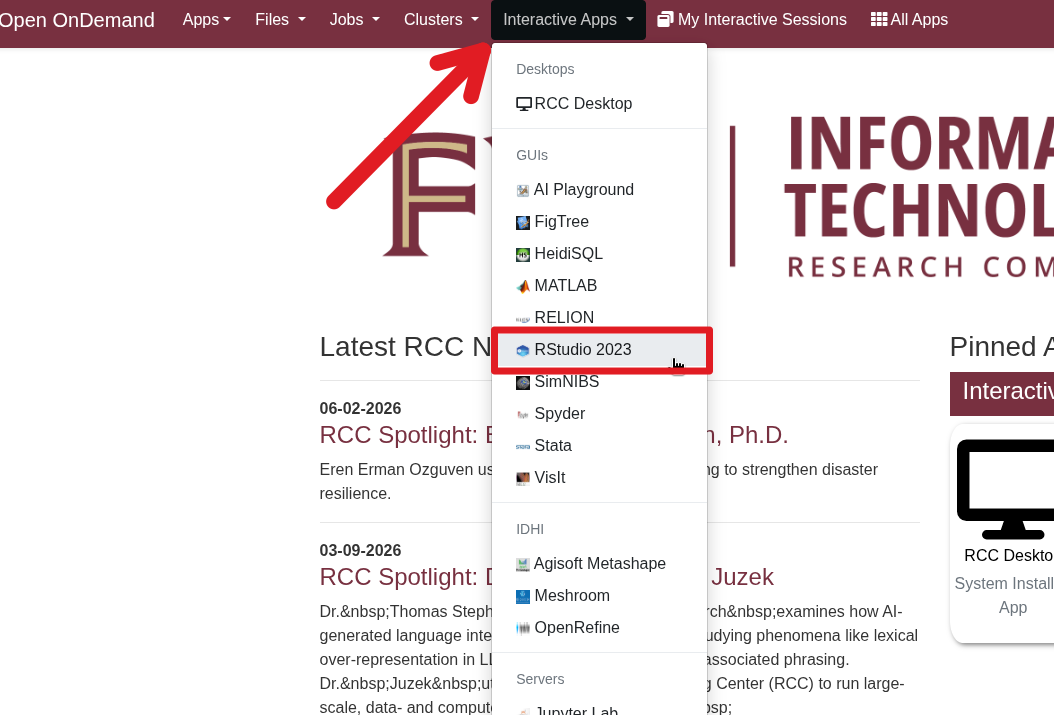
- On the job submission form, select a Slurm account that includes access to GPU nodes
- If you are not a member of a group with access to GPU nodes, enter
backfill2in the Slurm Account field and set Number of hours to no more than 4 - Set GPUs to at least 1
- Ensure "Internet Access via Web Proxy" is checked
- Set the other values as needed
- If you are not a member of a group with access to GPU nodes, enter
- When your job starts, you will see the RStudio IDE.
Start an Ollama container in Apptainer#
Return to the Open OnDemand tab showing your interactive session card, then follow the instructions to start an Ollama server in Apptainer.
Note
After starting the Ollama server you do not need to load or test the models on the terminal as the rollama package will do it for you. To do this please continue reading and refer to Loading a model with rollama
Install the R rollama package#
Follow the instructions for installing R packages to install the rollama package.
Select the Terminal tab in the upper-left corner of the RStudio window. Then run the following commands:
Using the rollama package#
Select the Console tab in the upper-left corner of the RStudio window. Enter the following example code:
You should see the following output in the console:
Loading a model with rollama#
The rollama package supports loading models directly into Ollama similar to using the command-line.
In the Console tab in the upper-left corner of the RStudio window, enter the following code after your library calls:
You should see similar output to the following in the console:
Chatting with the Ollama server#
If the request succeeds, you should see the chatbot response in the console.
For more information about how to use the rollama package, refer to the documentation page.
Troubleshooting#
If the R console cannot connect to Ollama, make sure:
- Your Ollama Apptainer container is still running.
- The Ollama server is listening on
http://127.0.0.1:11434. - You selected a GPU-capable Slurm account or requested GPU resources for your interactive job.
- Internet access via web proxy was enabled if you need to install R packages during the session.