JupyterLab
A highly extensible, feature-rich notebook authoring application and editing environment
This application is available in Open OnDemand.
First, you must upload your data onto the HPC. Or, if your files are small, you can upload them directly using Open OnDemand
Accessing JupyterLab on Open OnDemand#
Log into Open OnDemand. Once logged in, the top navigation bar select "Interactive Apps" and then from the drop down, "JupyterLab". You should see the following screen:
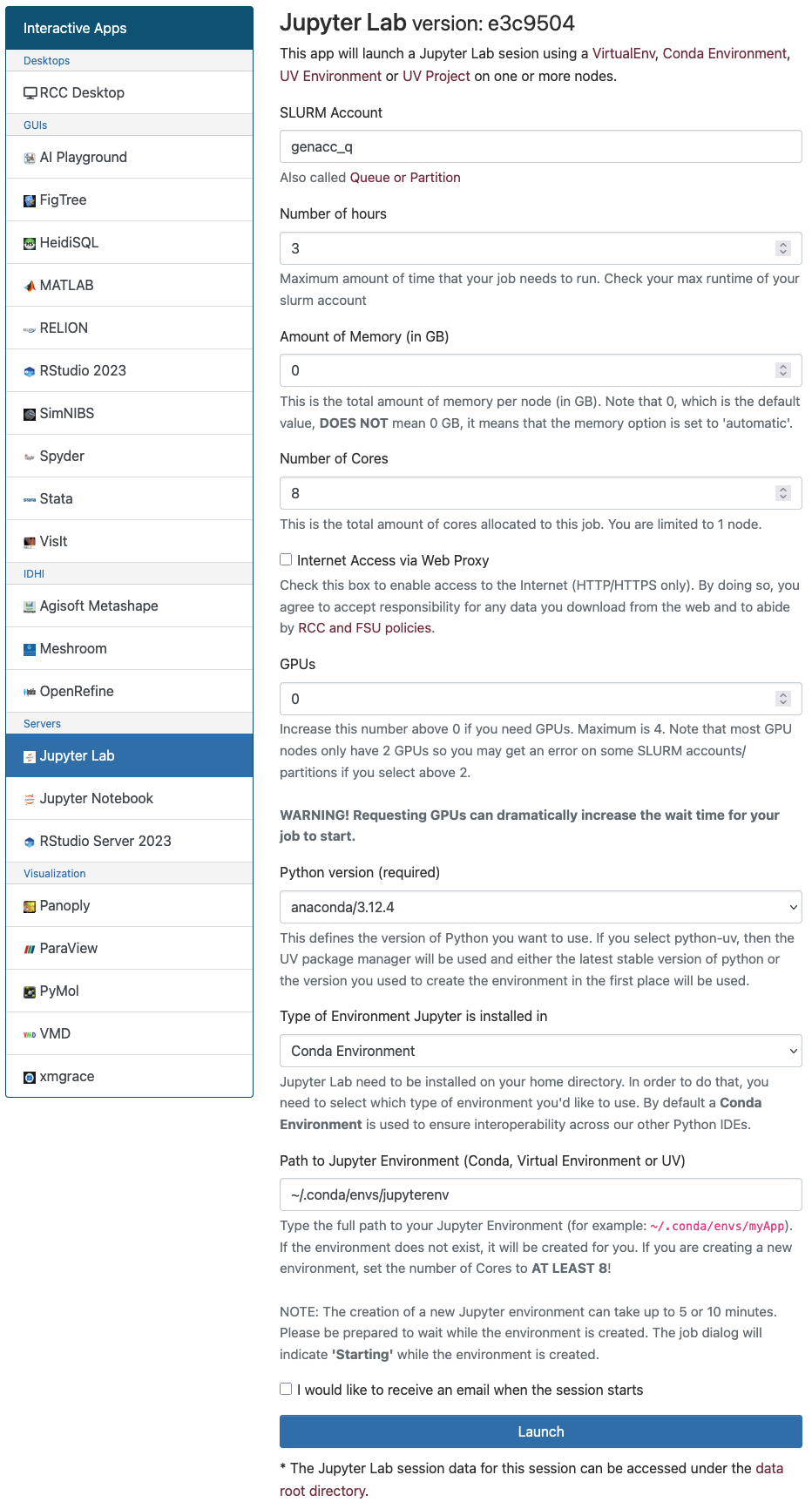
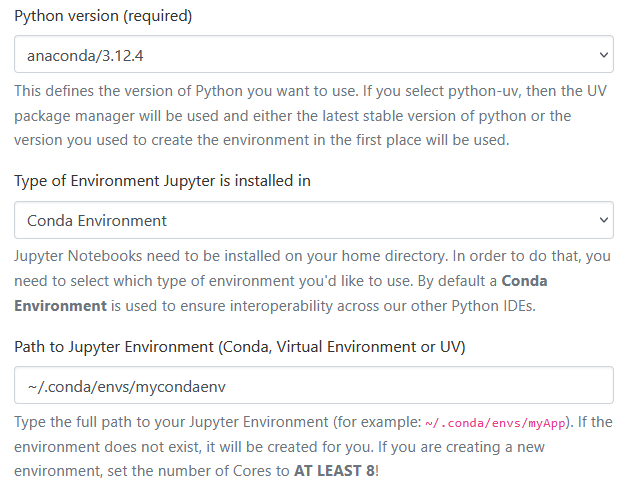
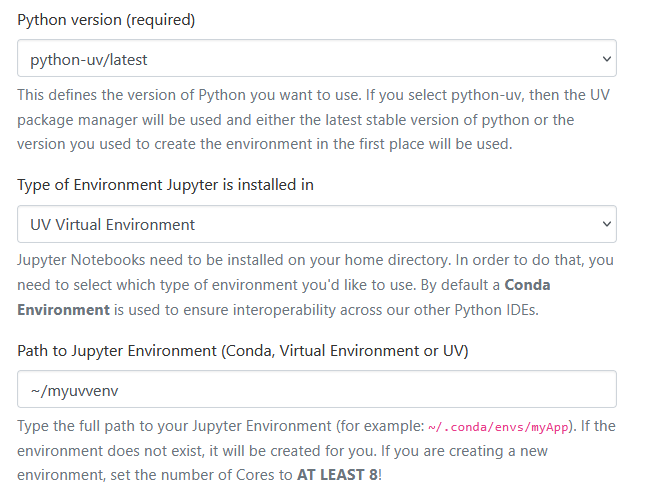
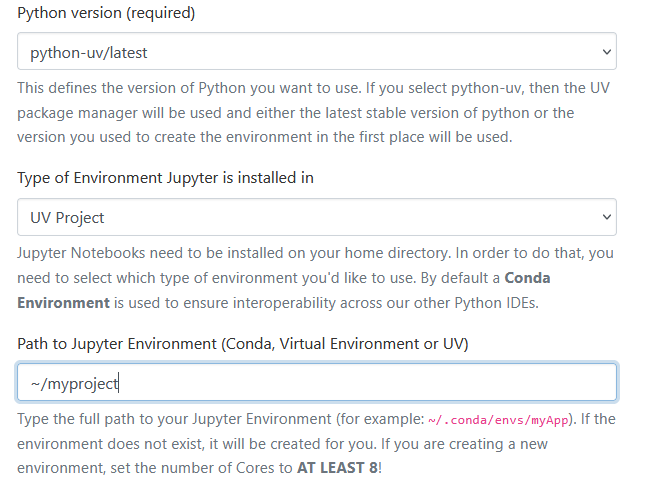
Select the Slurm Account/partition that you want to use for your job. If you leave this blank, the app will run in our genacc_q account/partition. When selecting your job specifications, it is important that the Enviroment Type parameter and the Python version parameter are compatible. The following are valid combinations of these parameters:
Python Version: Anaconda module and Environment Type: Conda:
Python Version: "python-uv" and Environment Type: UV:
Or, if using a UV Project:
Python Version: "Python/3" or "python-uv" and Environment Type: Virtual Enviroment:
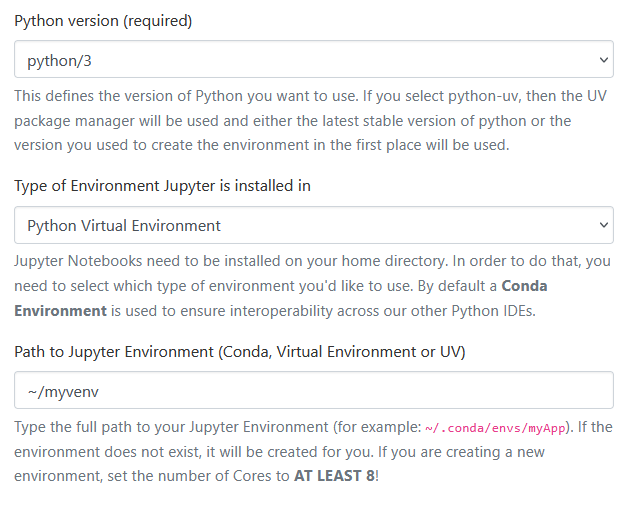
The same compatibility rules apply for using Jupyter Notebooks on Open OnDemand.
After completing the job submisstion form, click "Launch" to queue your job. When your interactive job has loaded, click "Launch" again on the new page. A new tab will open, and the JupyterLab Application will launch shortly after.
Accessing Files Outside Your Home Directory#
By default, Jupyter sessions launched through Open OnDemand are restricted to the user's home directory. This limitation is due to Jupyter's internal configuration, which prevents access to directories outside the home path. Consequently, files stored in /gpfs/research or other locations outside your home directory cannot be directly accessed or browsed within Jupyter.
If you need to access your research storage from within Jupyter, you can create a symbolic link from your home directory to your research folder.
Workaround Steps#
- Open a terminal (either through Open OnDemand or SSH).
- Create a symbolic link from your research directory to your home directory using the following syntax:
For example:
This creates a symbolic link called scratch in your home directory that points to /gpfs/research/scratch/abc25d.
Once created, you can navigate to scratch in Jupyter as if it were a normal folder, and access your research data.